Screenshot shortcuts on macOS, Linux and Windows
macOS
Screenshots
-
Cmd+Shift+3capture the entire screen -
Cmd+Shift+4capture selected portion of the screen -
Cmd+Shift+5see all screenshot/screencast controls on screen -
Cmd+Shift+6capture the Touch Bar -
Files ares saved as
.pngon yourDesktop
Screencasts
Cmd+Shift+5
Ubuntu
Screenshots
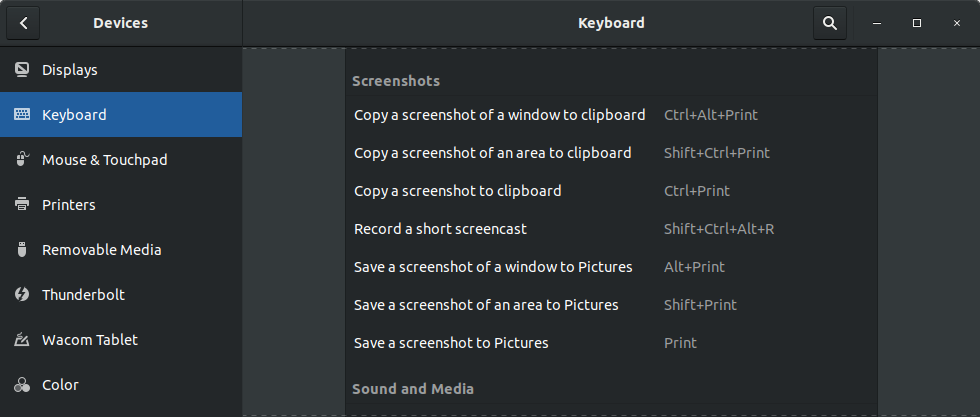
In Ubuntu 22.04 and GNOME 42 the default shortcuts for using the screenshots are:
Prt Scrnto take a screenshot interactivelyAlt+Prt Scrntake a screenshot of current application windowShift+Prt Scrnto take a screenshot of entire screen (all monitors)
The images will be saved in your ~/Picture/Screenshots folder.
Ubuntu 22.04 introduced a screenshot utility that allows you to take a screenshot interactively instead of taking a screenshot directly with the shortcuts. You can change this behaviour under Settings > Keyboard > View and Customize Shortcuts > Screenshots
You can also enable the old screenshot utility to save screen selections. You'll have to install gnome-screenshot and add a custom shortcut for the command gnome-screenshot -a. (The -a or --area option lets you grab an area of the screen instead of the entire screen). You should also then disable the interactive utility shortcut if needed
The old shortcuts used to be:
Prt Scrnto take a screenshot of entire screen (all monitors)Alt+Prt Scrntake a screenshot of current application windowShift+Prt Scrnto take a screenshot of an area you select
And the images were be saved in the ~/Pictures folder. Holding Ctrl with above shortcuts would copy to clipboard instead of saving images.
Screencasts
Ctrl+Alt+Shift+Rstart/stop recording your screen
The screencasts will be saved in your ~/Videos folder.
Windows
Screenshots
Prt Scrn- entire screen, copied to clipboardWin+Prt Scrn- entire screen, saved to Pictures > ScreenshotsAlt+Prt Scrn- active window, copied to clipboardWin+Shift+S- selected area, copied to clipboard
Screencasts & Game bar
Win+G- Game bar (will bother you most times asking if the app is a game)Win+Alt+Prt Scrn- take screenshotWin+Alt+R- sart/stop recording
Recordings are saved in Username > Videos > Captures in MP4 format. Screenshots are saved in PNG